Passwords for developers
The same privacy-first generators from passwords.lu — in Chrome and in VS Code. Local generation, optional Have I Been Pwned checks, and PrivateNote sharing.
Pick your workspace
Why we built these
You are already in the browser or in VS Code when you need an API key, a test account, a guest Wi‑Fi passphrase, or a password for an env file. Switching contexts breaks flow — and it is easy to reuse something weak when you are in a hurry.
passwords.lu already runs entirely on your device — nothing is stored on our servers. The Chrome and VS Code extensions bring the same idea into the places where secrets actually get used.
No accounts, no cloud sync of generated secrets — just generators and checks when you need them.
Passwords for Chrome
Generate secrets from the toolbar or side panel without opening passwords.lu. Includes guest Wi‑Fi QR codes you can download as PNG.
How to install
Search for "Passwords" by passwords.lu in the Chrome Web Store, or open the listing directly:
Open Chrome Web StoreQuick start
After install, click the Passwords icon in the toolbar.
Open the popup or side panel
Use the toolbar icon for a quick popup, or open the side panel when you want more space. Password is selected by default with a fresh secret ready.
Pick what you need
Switch tabs for passphrase, PIN, API key, username, or guest Wi‑Fi. Options update per type — length, character sets, word count, and SSID for Wi‑Fi.
Copy or download
Copy is one click. On the Wi‑Fi tab, download a scannable QR PNG for guests. Share via PrivateNote when you need to hand a secret to someone else.
Check text on any page
Right-click selected text and choose strength or breach check — useful for reviewing credentials on a page without pasting them elsewhere.
What it does
Everything runs locally unless you explicitly turn on breach checking.
- Popup and side panel. Six generators in one UI, with live output and badges for strength and breach status.
- Guest Wi‑Fi QR. Memorable passphrase plus a downloadable WIFI QR PNG for visitors.
- Local strength scoring. zxcvbn (and PIN-specific checks) run on your machine — no upload.
- Optional breach lookup. Have I Been Pwned via k-anonymity: only a hash prefix leaves your device.
Passwords for VS Code
Generate and validate secrets without leaving your editor — sidebar panel, palette commands, and insert at the cursor.
How to install
Search for "Passwords" in the VS Code Marketplace, or install from the terminal:
Open VS Code MarketplacePrefer the terminal?
code --install-extension passwordslu.passwords-lu-generator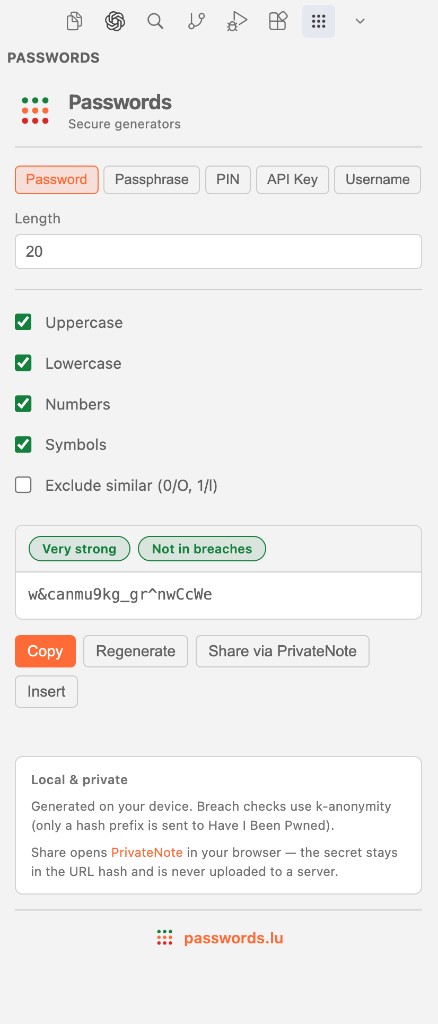
Quick start
After install, you can ignore everything else until you need a secret.
Open the panel
In the Activity Bar (left sidebar), click the Passwords icon. The generator panel opens with Password selected and a new secret already generated.
Pick what you need
Switch tabs for passphrase, PIN, API key, or username. Options update per type — length, character sets, word count, and more.
Use the result
Copy is the primary action. You can also insert at the cursor, regenerate, or open PrivateNote when you need to hand the secret to someone else.
Go faster with the palette
Press Cmd/Ctrl+Shift+P and type Passwords for one-shot generate-and-copy commands, or to check selected text or the clipboard.
What it does
Everything runs locally unless you explicitly turn on breach checking.
- Sidebar generators. Five secret types in one panel, with live output and badges for strength and breach status.
- Palette shortcuts. Generate, copy, insert, and analyze without touching the panel — useful when your hands are already on the keyboard.
- Local strength scoring. zxcvbn runs on your machine. No network call, no upload — just a readable label like “Very strong”.
- Optional breach lookup. Have I Been Pwned via k-anonymity: only a hash prefix leaves your device, never the password itself.
Command palette reference
All commands live under the Passwords category. These are the ones you will reach for most often.
Generate
Interactive pickers and direct shortcuts using your workspace defaults.
| Command | What it does |
|---|---|
| Passwords: Generate… | Choose a type, then copy, insert, share, or regenerate |
| Passwords: Generate and Copy… | Choose a type and copy immediately |
| Passwords: Generate Password | Password with your default length and character rules |
| Passwords: Generate Passphrase | EFF long wordlist passphrase |
| Passwords: Generate PIN | Numeric PIN |
| Passwords: Generate API Key | Base64url, hex, or alphanumeric with prefix |
| Passwords: Generate Username | Adjective+noun or random string |
Analyze
Check text you already have — useful for reviewing env files or pasted credentials.
| Command | What it does |
|---|---|
| Passwords: Check Selection Strength | Local zxcvbn score on selected text |
| Passwords: Check Selection for Breaches | HIBP k-anonymity check on selected text |
| Passwords: Check Clipboard for Breaches | HIBP check on clipboard contents |
Panel
| Command | What it does |
|---|---|
| Passwords: Open Panel | Focus the Passwords sidebar |
Customize defaults
Open Settings → Extensions → Passwords to set workspace-wide defaults.
passwords-lu.passwordLength— default 20. Default password lengthpasswords-lu.passphraseWords— default 5. Words in generated passphrasespasswords-lu.pinLength— default 6. Digits in generated PINspasswords-lu.apiKeyPrefix— default sk_. Prefix prepended to API keyspasswords-lu.usernameMode— default composite. composite (adjective+noun) or randompasswords-lu.breachCheckEnabled— default false. Auto-check passwords and passphrases against HIBP after generation
Local and private
Both extensions follow the same privacy model as passwords.lu — your secrets are not our product.
- Generation stays on your machine. Cryptographically secure randomness. Nothing is logged or sent to passwords.lu.
- Strength checks are offline. Analysis never touches the network.
- Breach checks use k-anonymity. When enabled, only the first five characters of a SHA-1 hash go to Have I Been Pwned — not your password in plain text.
- Share opens PrivateNote in the browser. The secret travels in the URL hash fragment, not in server logs.
Go further
- Chrome launch story: Passwords for Chrome is live
- VS Code launch story: Passwords for VS Code is live
- Chrome listing: Passwords on the Chrome Web Store
- Same breach model in the browser: Breach Test
- How k-anonymity works: How to Check If Your Password Has Been Leaked
- Hand off a secret safely: PrivateNote
Ready to try it?
Install where you work — Chrome, VS Code, or both.